Log In to SmartPlex on iPhone
Purpose
This guide explains how to install and log in to the SmartPlex application on your iPhone to access PLEX.
Prerequisites
- An iPhone with access to the Apple App Store (United States region).
- Your PLEX username.
Steps
-
Open the App Store on your iPhone (ensure your Apple ID is set to the US region).
-
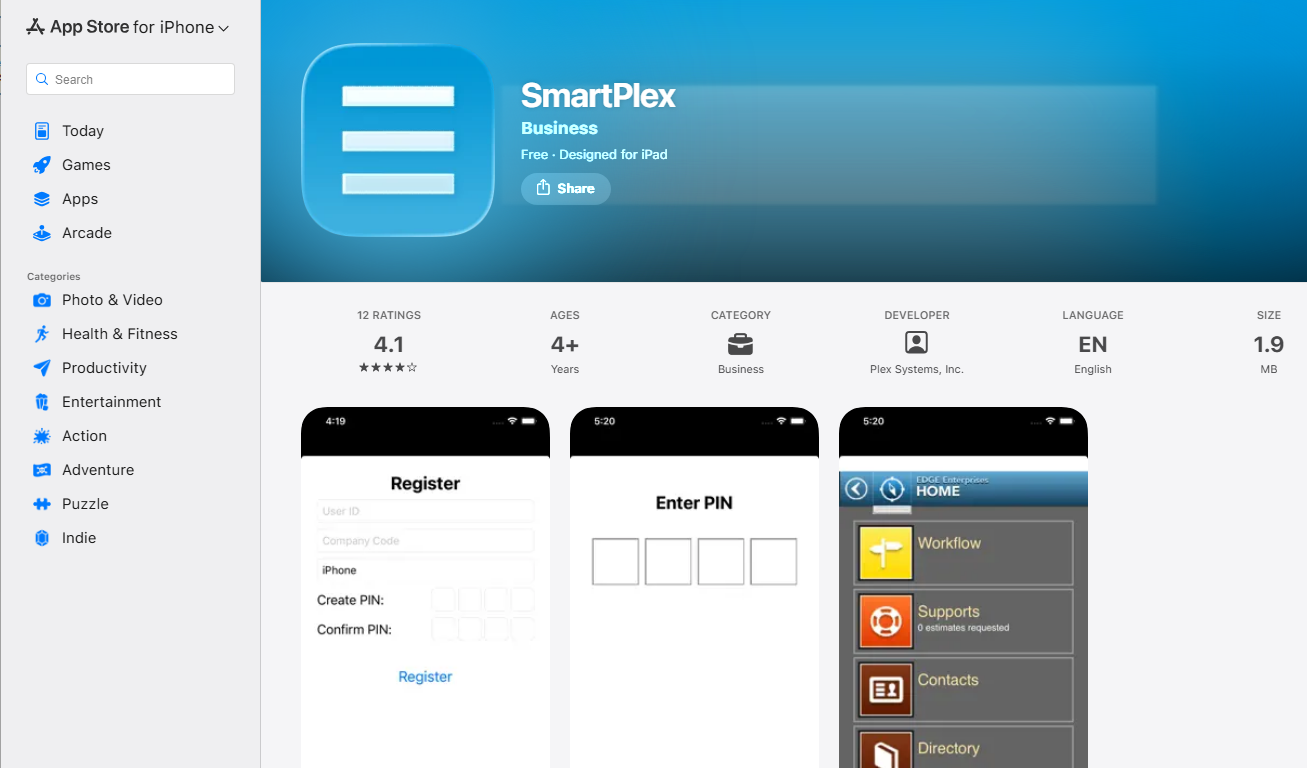
Search for SmartPlex and download the app.
-
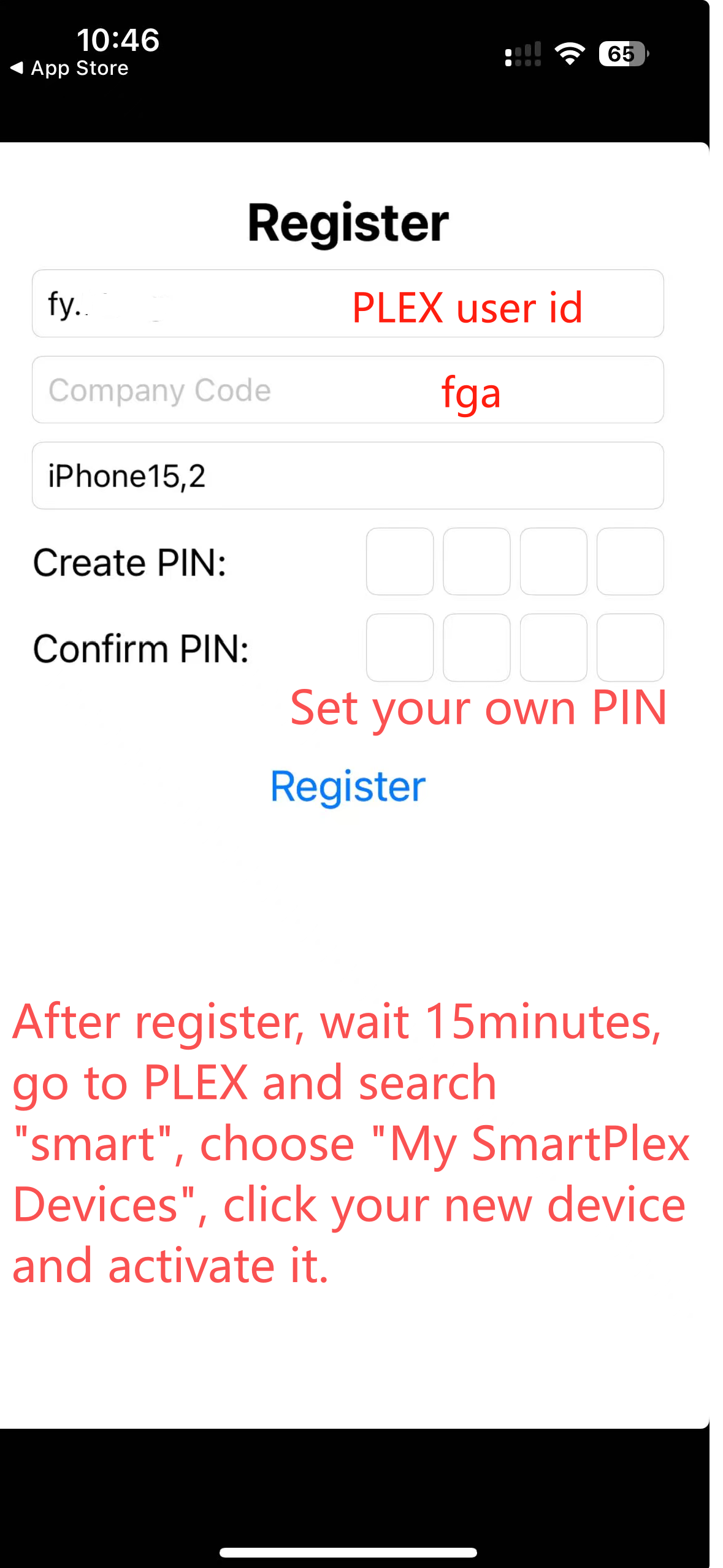
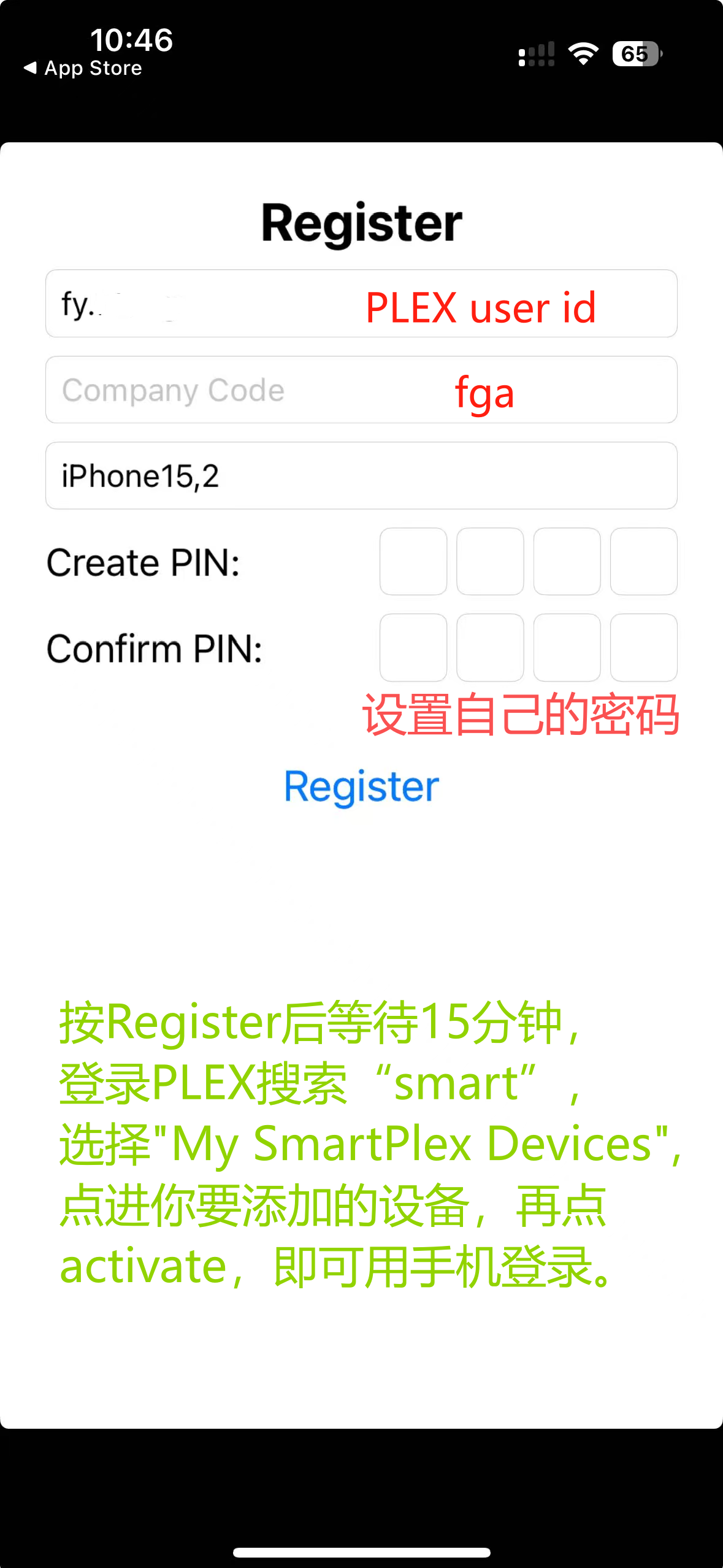
Open the SmartPlex app. On the Register screen, fill out the following fields:
- User ID: Enter your PLEX User ID.
- Company Code: Enter
fga - Create PIN: Set your own secure 4-digit PIN for the device.
- Confirm PIN: Re-enter the PIN you just created to verify.
-
Tap Register.
-
Wait 15 minutes for the registration to process.
-
Log in to plexonline.com on a web browser.
-
Press
Ctrl + Mto search for "smart", then choose My SmartPlex Devices.
-
Find the new device you want to add, then activate.
-
You can now use your PIN to log in to the SmartPlex app on your iPhone.
Common Issues
| Symptom | Likely Cause | Fix |
|---|---|---|
| Can't find "SmartPlex" in the App Store | Apple ID Region | Ensure your Apple ID region is set to the United States. |
| "Invalid credentials" error | Wrong Company Code or User ID | Double-check that your Company Code is exactly fga and your User ID is correct. |
| "No Registration Permission" error | Missing SmartPlex Access | Contact the IT Department to request permission to use SmartPlex. |
| "IP Restriction" error | IP Address not allowed | Contact the IT Department to remove the IP restriction for your account. |
| Device Not Authorized | Not activated online or didn't wait long enough | Wait at least 15 minutes after registering on the phone, log into PLEX on a computer, and activate the device under "My SmartPlex Devices". |
| Forgot PIN | PIN is lost | Delete the activated device from "My SmartPlex Devices" on the PLEX website, then register and activate the device again to set a new PIN. |