Log In to PLEX
Purpose
This guide walks you through logging in to PLEX (our ERP and ticketing system). Use this if you're a new employee setting up PLEX for the first time, or if you're having trouble signing in.
Prerequisites
- A company-issued workstation or laptop connected to the corporate network
- Your PLEX username and password
- A supported browser: Chrome, Edge, or Firefox
Steps
-
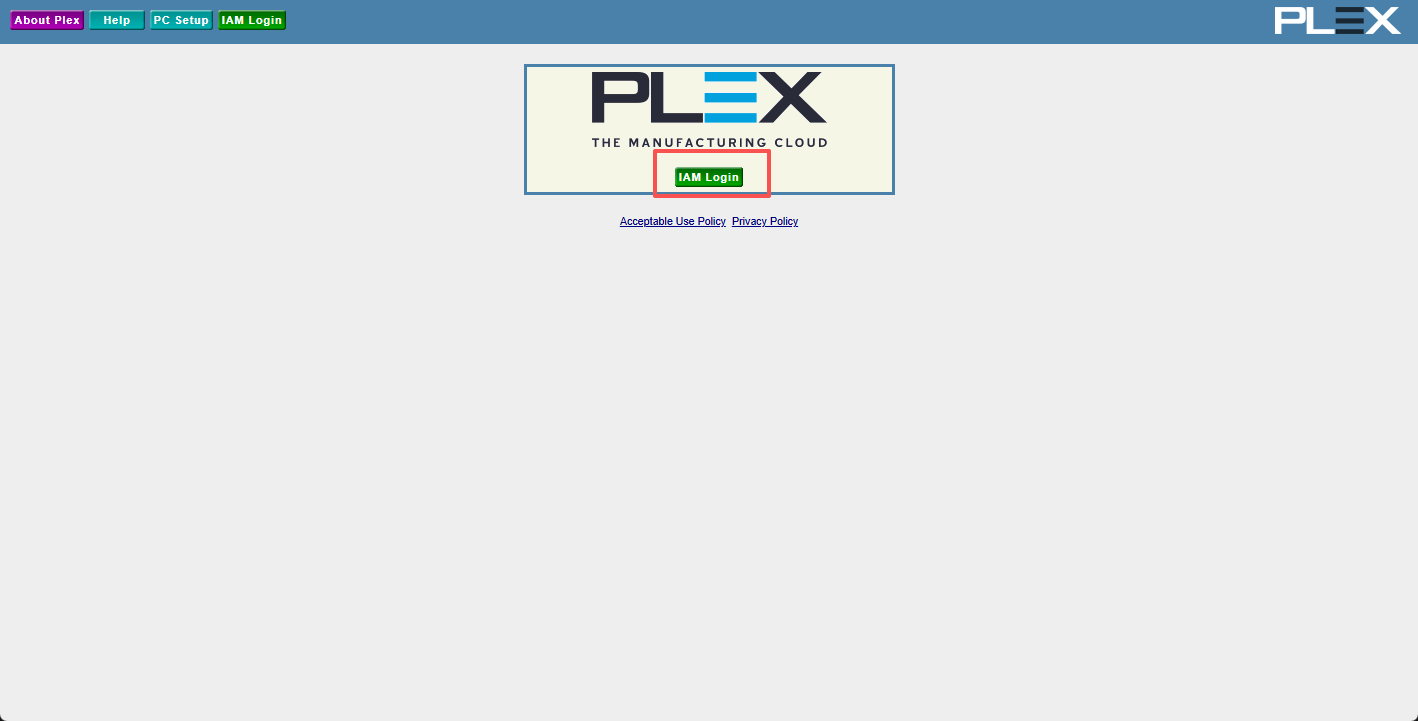
Go to plexonline.com and click the IAM Login button.
-
Enter your Username and Password, then click Sign in.
- Note: The Company code should be pre-filled as
FGA.
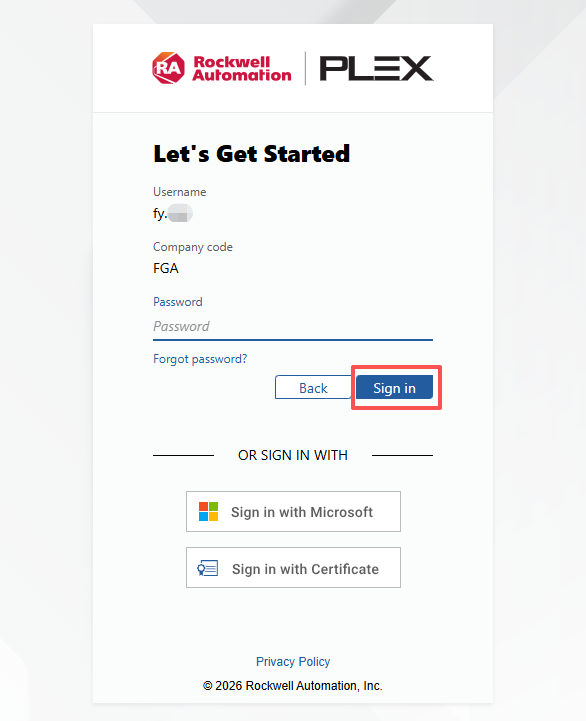
- Note: The Company code should be pre-filled as
-
You should now see the PLEX main page.
Note: If the new window doesn't appear, please ensure pop-ups are enabled in your browser and refresh the page.
Click here for full PLEX Login Work Instruction
Common Issues
| Symptom | Likely Cause | Fix |
|---|---|---|
| "Invalid credentials" error | Wrong username or password | Double-check your company code and username. Use the "Forgot Password" link or contact IT. |
| Page won't load | Pop-up blocker | Enable pop-up window in your browser settings. |
| Account locked after multiple attempts | Too many failed login attempts | Wait 15 minutes or contact IT to unlock your account. |
| Browser shows security warning | Outdated browser | Update your browser to the latest version. |